
Multi-Signal Monitoring
Monitor selected Emerald signal modules across the user's chosen instrument set.
Emerald Signal Scanner
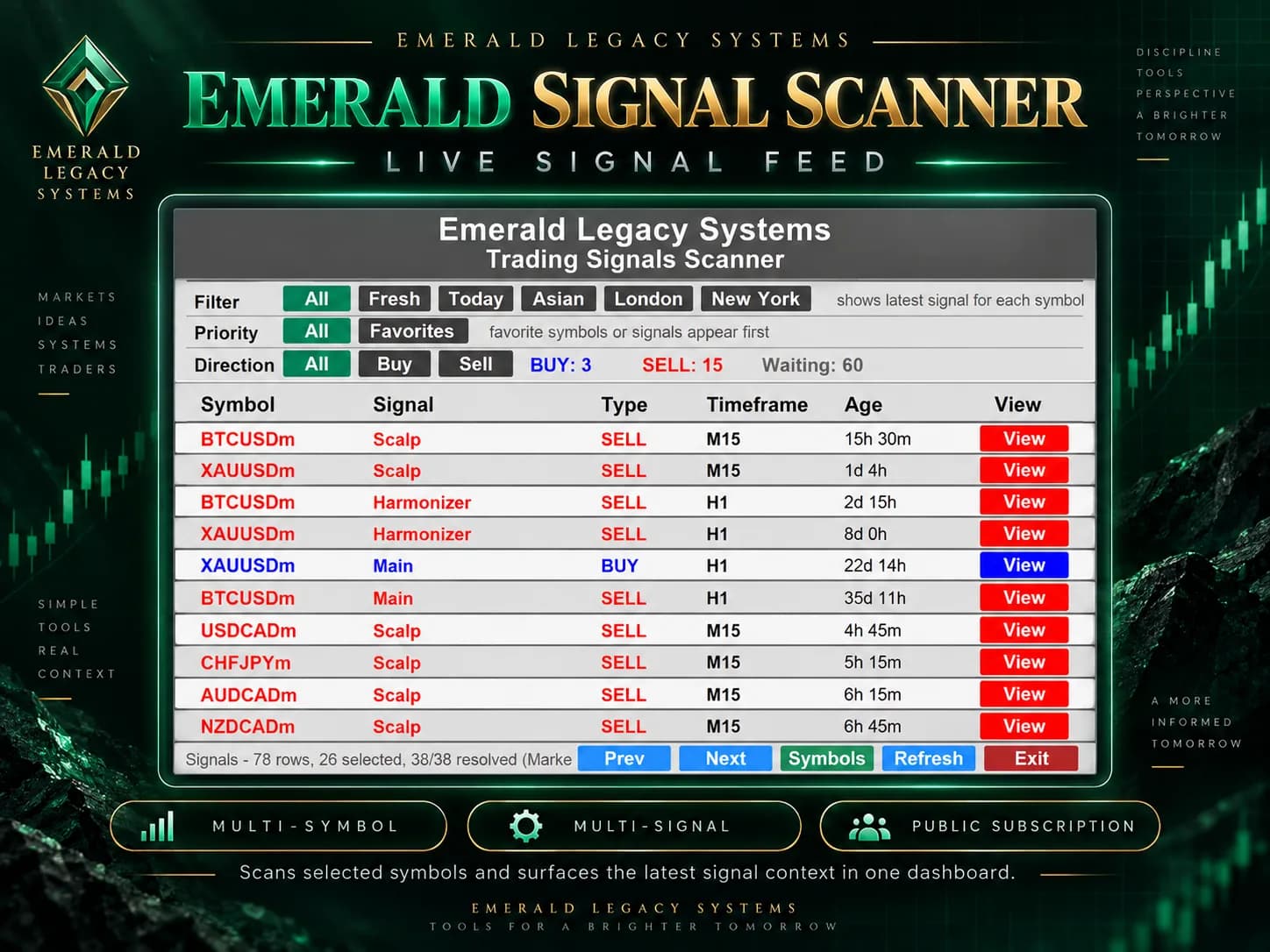
Emerald Signal Scanner monitors selected instruments and selected Emerald signal modules, then helps users filter fresh signal context and open the related chart for review.
What the Scanner Does
It consumes the Emerald signal framework and presents matching Scanner results for review. The dashboard is a monitoring and context workflow, separate from execution, order placement, or account performance reporting.
Monitor selected Emerald signal modules across the user's chosen instrument set.
Narrow the dashboard by session, signal direction, Favorites, and supported freshness filters.
Use View to open the associated chart and review the signal in surrounding price structure.
Fresh-signal alerts can operate alongside monitoring when enabled in Scanner configuration.
Four-Stage Workflow
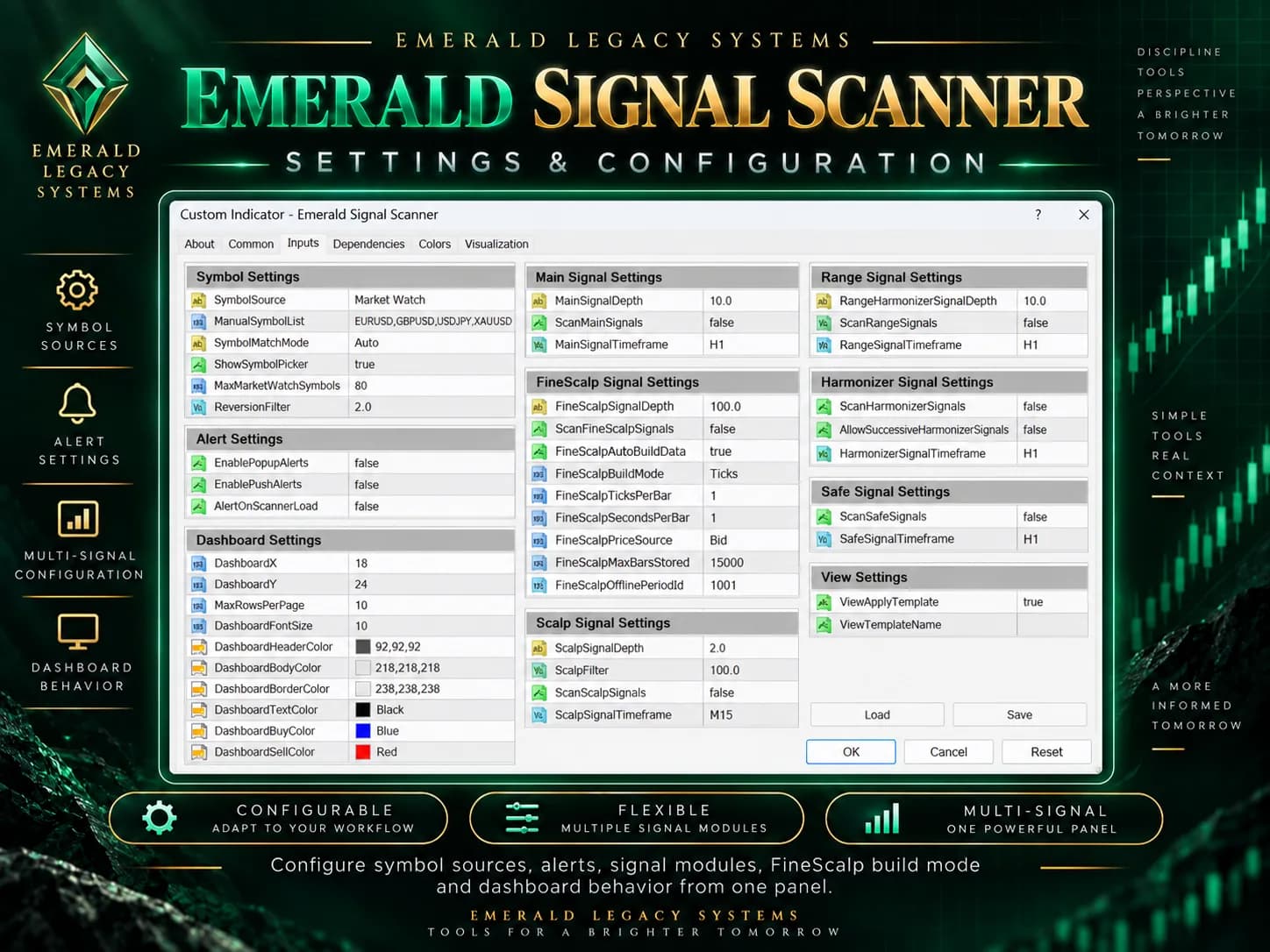
Configure signal modules, timeframes, alert behavior, Scanner behavior, and optional chart-template context.
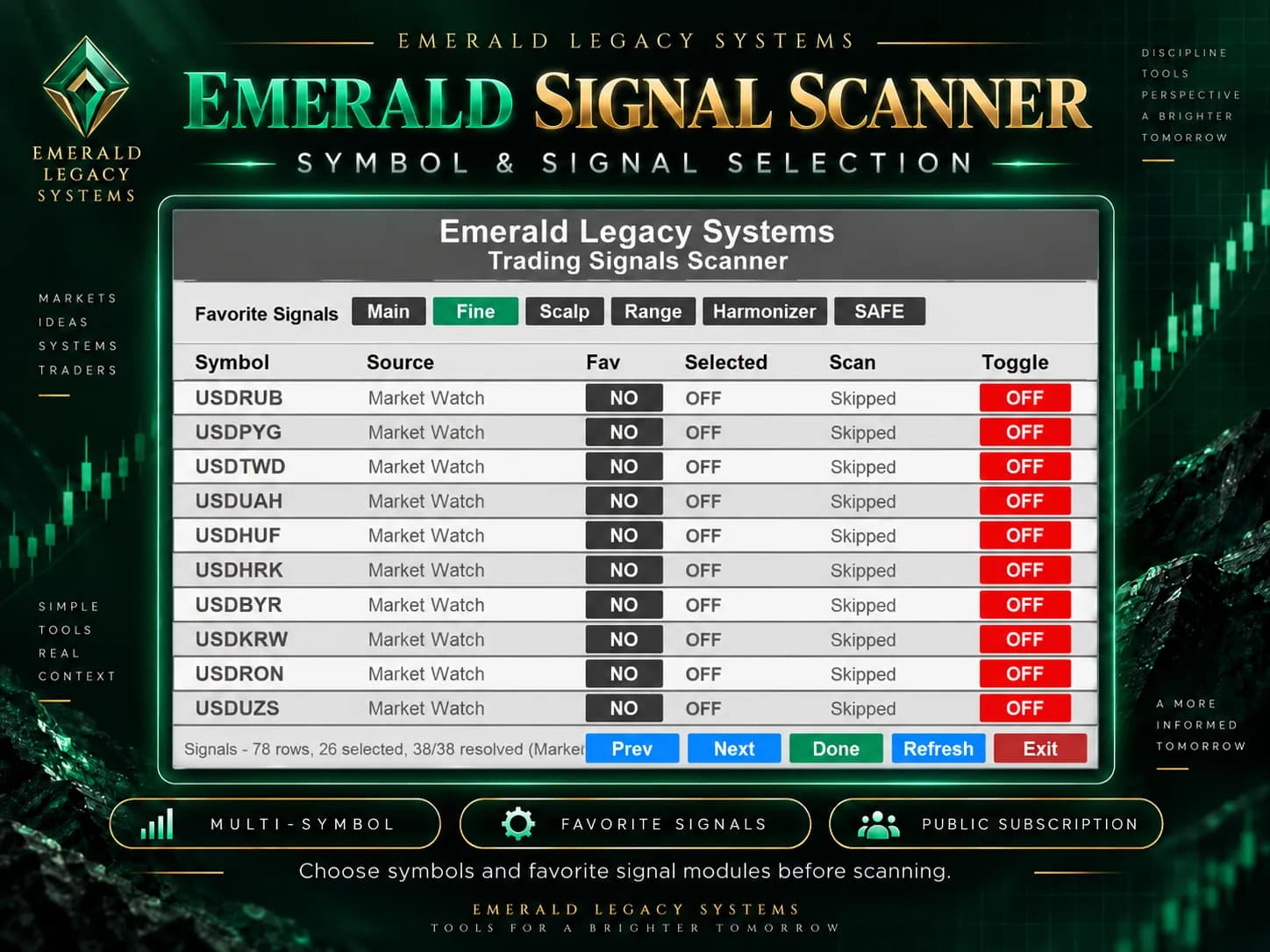
Choose instruments, favorite symbols, and favorite signal modules.
Monitor resulting signals and narrow the dashboard using session, direction, Favorites, and other supported filters.
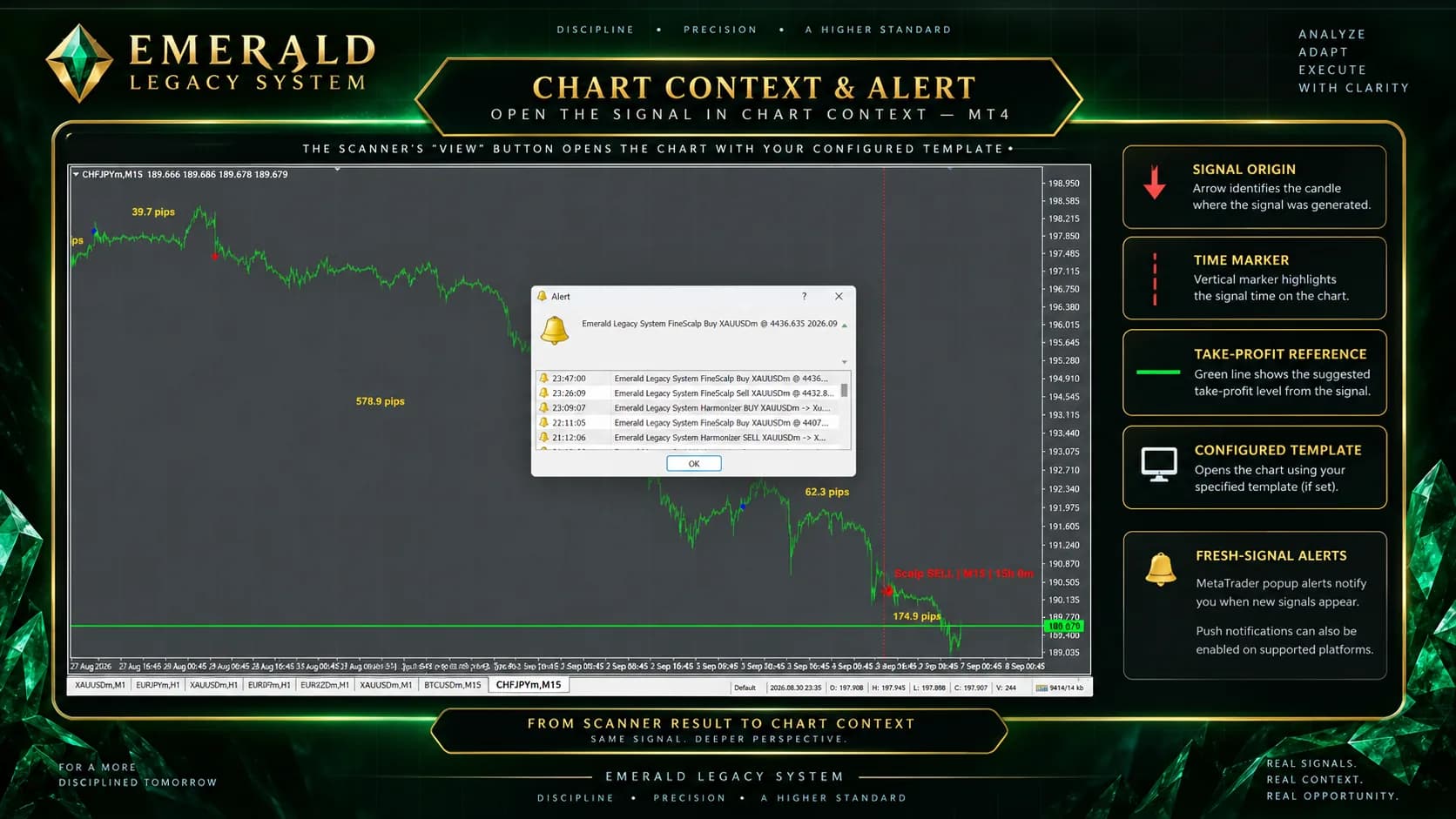
Use View to open the associated chart and inspect the signal arrow, originating candle, vertical marker, and TP reference in context.
The configuration screen occurs first. It controls signal inputs, timeframes, alert behavior, dashboard settings, FineScalp-related options, and View-related chart context.
Scanner selection lets users define the market universe and signal modules they want to monitor before the dashboard begins organizing results.
The results dashboard remains the main monitoring interface for populated Scanner signals.
Filters & Favorites
Filters help organize Scanner results for review. They may be combined to focus on sessions, directions, favorite instruments, favorite signal modules, and freshness where supported.
Used to refine what the monitoring dashboard displays.
Used to refine what the monitoring dashboard displays.
Used to refine what the monitoring dashboard displays.
Used to refine what the monitoring dashboard displays.
Favorites can focus the Scanner around preferred symbols and preferred signal modules without implying signal ranking or performance priority.
Stage 4 - Open & Review
Selecting View from a Scanner result opens the chart associated with that result so the user can inspect the signal inside the surrounding price structure. View means open and review chart context; it does not execute a trade, open a position, accept a signal, or place a market order.
On MT4 evidence, the chart may show the signal arrow on the originating candle, a vertical marker near the signal point, and a Take-Profit Reference. When a configured chart template is set in Scanner settings, View may open the chart with that configured chart template applied.
Arrow identifies the signal candle.
Vertical marker helps locate when the signal occurred.
Green target line provides a take-profit suggestion/reference.
View may open the chart using the user's configured chart template.
Fresh-Signal Alerts
If enabled, the Scanner can notify the user when fresh signals are populated. Alerts are informational signal context, not trade execution, financial advice, or assured notification delivery.
Configuration
Alerts enabled
Scanner detects fresh signal
Popup / push notification
MetaTrader popup alerts may notify the user when newly surfaced Scanner signals appear.
Push notifications can also be enabled on supported platform configurations.
Signal vs Trade Boundary
The Scanner is a monitoring, filtering, alerting, and chart review product. Execution and trade management remain separate product or user workflow decisions.
Platform Availability
MT4 evidence is shown for the current page. Platform-specific implementation behavior may differ across supported environments.
Product Ecosystem
analysis signal
Unified multi-signal indicator product for public subscription access across supported trading platforms.
Emerald Signal Scanner is designed to organize selected symbols, selected signal modules, fresh-signal notifications, and chart review workflows while keeping execution decisions separate.